Explore null | Canon Latin America
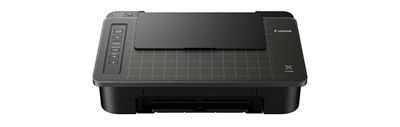
PIXMA E301
Meet the wireless PIXMA E301 Wireless Inkjet Printer, made for easy document printing using AirPrint1 and Wi-Fi®;2.
- PIXMA E301 Wireless Inkjet Printer
- Setup CD-ROM
- Full Set of Ink Cartridges (PG-44/CL-54)
- Power Cord (USB cable not included)
SIMPLE WIRELESS PRINTING WITH SMARTPHONE COPY
Meet the wireless PIXMA E301 Wireless Inkjet Printer, made for easy document printing using AirPrint3 and Wi-Fi®2. The PIXMA E301 features Smartphone Copy, which allows you to scan and copy documents right from your smartphone using the Canon PRINT app1. The PIXMA E301 is also compatible with XL ink cartridges - which can help save you money, print more when you need to, and extend the time between replacing ink cartridges.
















PIXMA E301 Wireless Inkjet Printer Features
- AirPrint3 allows you to easily print right from your iPhone, iPad and Mac.
- Easily print from any room in the house with Wi-Fi®2.
- Quickly refill paper with the dedicated Rear Paper Tray.
- FINE Hybrid Ink System for detailed documents and photos.
- With Auto Power On/Off your printer will turn on when you need it and off when you don’t.
- Scan and copy documents with Smartphone Copy using the Canon PRINT app1.
- Use Quiet Mode to reduce printer noise when you are worried about disturbing others.
SIMPLY CONNECTED
Enjoy the simplicity of connecting your smartphone, tablet and all your favorite devices with ease. Print hassle free - even from the Cloud3 , Wi-Fi®2 and even from social media.1
SMARTPHONE COPY
Using the Canon PRINT app1 - scan, copy and send documents using Smartphone Copy!
CONVENIENCE BUILT-IN
With features like AirPrint3, Auto Power On/Off, built in Wi-Fi®2 and PIXMA Cloud Link1 - it's easy to see why the PIXMA printers are so easy to use.
Specifications are subject to change without notice. All viewscreeen and printer output images are simulated.
- Requires an Internet connection and the Canon PRINT Inkjet/SELPHY app, available for free on the App Store and at Google Play. Compatible with iPad, iPhone 3GS or later, and iPod touch 3rd generation or later devices running iOS 7.0 or later, and Android mobile devices running Android 2.3.3 or later. Your device must be connected to the same working network with wireless 802.11 b/g/n/ac/ad capability as your printer. Requires a compatible social media account and is subject to that social media account?s Terms of Service. Certain exceptions may apply.
- Wireless printing and scanning requires a working network with wireless 802.11b/g/n/ac or ad capability. Wireless performance may vary based on terrain and distance between the printer and wireless network clients.
- AirPrint functionality requires a compatible iPad, iPhone, or iPod Touch device running iOS 7.0 or later, and an AirPrint-enabled printer connected to the same network as your iOS device. A printer connected to the USB port of your Mac, PC, AirPort Base station, or Time Capsule is not supported.
- Document print speeds are the averages of ESAT in Office Category Test for the default simplex mode, ISO/IEC 24734. Photo print speed is based on the default setting using ISO/JIS-SCID N2 on Photo Paper Plus Glossy II and does not take into account data processing time on host computer. Print speed may vary depending on system configuration, interface, software, document complexity, print mode, page coverage, type of paper used etc.
- Resolution may vary based on printer driver setting. Color ink droplets can be placed with a horizontal pitch of 1/4800 inch at minimum.
- Paper types NOT supported for borderless printing are as follows: Envelope, High Resolution Paper, T-Shirt Transfer, and Photo Stickers. The maximum borderless printing size is 4"x6".
- Requires an Internet connection
- DPS over IP compatible device required.
- Requires an Internet connection and Google account. Subject to Google Terms of Service. Certain exceptions may apply.
- To install using Windows® OS, .NET Framework 4 is required. Compatible still image formats are PDF (created using Canon PDF Creator only), JPEG (Exif), TIFF, and PNG. Compatible video formats are MOV (from select Canon digital cameras only) and MP4 (from select Canon digital camcorders only).
- Works edited by using this application cannot be displayed, edited, or printed without this application. Compatible with Android device of 7 inches or more using Chrome (latest version compatible with your current version of Android OS), iOS Devices of 7 inches or more using Safari 5.1 or later, Windows PC (excluding RT) using Internet Explorer 10 or later of Microsoft Modern UI version, Microsoft Internet Explorer9 or later, Mozilla Firefox 31 or later, or Google Chrome version 36 or later, and with Mac OS X 10.6.8 or later using Safari 5.1 or later.
- "Full HD Movie Print" is available from "MOV" and "MP4" movie files created by select Canon EOS Digital SLRs, PowerShot, and VIXIA digital cameras and camcorders. Requires PC or Mac with Intel® processor and Canon ZoomBrowser EX 6.5 or later or Canon ImageBrowser 6.5 or later for "MOV" files, or Canon ImageBrowser EX 1.0 or later for "MOV" or "MP4" files. Print quality is determined by the video resolution.Function does not upscale video resolution.
- Requires an Internet connection and the Message In Print app, available for free on the App Store starting November 2017. Compatible with iPad, iPhone 6 or later devices running iOS 9.0 or later. Your device must be connected to a working network with wireless 802.11 b/g/n/ac/ad capability. Requires original content to be created using the Message In Print app/service, then printed on a compatible Canon Printer released between August 2009 or later and delivered to recipient who views image and content through the compatible Message In Print app on their compatible device. Compatible paper sizes include 4" x 6" and Square 5" x 5" only, and compatible media types include Genuine Canon Photo Paper Glossy, Photo Paper Semi-Gloss, Photo Paper Luster and Photo Paper Matte only. Certain exceptions may apply.
- Requires Android mobile device with Android 4.4 operating system or later with the Mopria Print Service pre-loaded with that device and the compatible PIXMA printer on the same wireless network. The Mopria experience is also available on Android 4.4 mobile devices with a download of the Mopria Print Service from Google Play.
- CREATIVE PARK PREMIUM is a premium content service available exclusively to users only when all of the colors of genuine Canon inks and all of the software that came with the printer are properly installed.
- Operation can only be guaranteed on a PC with pre-installed Windows 10, Windows 8.1, Windows 7 SP1.
- Internet Connection required during software installation. For full compatibility macOS v10.12.1 or later is recommended.
- Some functions may not be available with these Operating Systems. Please refer to the manual or website for details.
- Requires "Canon Print Plug-in" available for free from the Amazon Appstore and an Amazon Fire Phone, Amazon Kindle Fire HD6 or HDX7 device or later running Fire OS 4.0 or later.
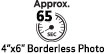
| Print Speed Text | 10 X 15 Cm (4" X 6") Photo: Approx. 65 Seconds (Borderless)4 |
| Print Speed Choice | Black |
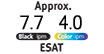
| Print Speed Text | Esat: Approx. 7.7 Ipm 4 |
| Print Speed Choice | Color |
| Print Speed Text | Esat: Approx. 4.0 Ipm4 |
| Nozzle Text | Color: 960 / Pigment Black: 320 / Total: 1,280 |
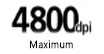
| Resolution Text | Up To 4800 X 1200 Dpi5 |
| Ink Compatibility | Ink Type Pg-44bk/Pg-44xl: Pigment Black Ink Cl-54/Cl-54xl Dye Based Inks Ink Tank & Fill Volume Pg-44 Bk (5.6 Ml Std. | (15.0 Ml) Xl Cl-54 Color (6.2 Ml) Std. | (12.6 Ml) Xl |
| Paper Sizes |
|
| Paper Compatibility | Plain: Plain Paper Glossy: Photo Paper Plus Glossy Ii, Photo Paper Glossy; |
| Print Features | Airprint3, Borderless Printing (Up To 4"X6" / 10 X 15 Cm)6, Canon Print App1, Document Printing, Easy Photoprint+11, Google Cloud Print9, Message In Print13, Mobile Device Printing, Mopria Device Printing14, My Image Garden10, Photo Printing, Pixma Cloud Link1, Wireless Pictbridge8, Wireless Printing2, Single Sided Printing |
| Output Tray Capacity | Rear Paper Tray: 60 Sheets Of Plain Paper Or 20 4" X 6" (10 X 15 Cm) Sheets Or 5" X 7" (13 X 18 Cm) Photo Paper. |
| Copy Feature | Smartphone Copy Using The Canon Print App1 |
| Max Resolution Choice | Optical |
| Max Document Size | 8.5" X 11.7" (A4/Letter) |
| Other Features | Auto Power On/Off, Canon Print App1, Creative Park Premium15, Fine (Full-Photolithography Inkjet Nozzle Engineering) Hybrid Ink System, Energy Star® Certified, Pixma Cloud Link1, Quiet Mode |
| Os Compatibility | Windows:16 Windows® 10, Windows 8.1, Windows 7 Sp1 Mac:17 Mac Os® X V10.10.5 - Macos V10.12 (Sierra) Mobile Operating Systems:18 Ios®, Android™, Windows 10 Mobile, And Amazon Fire Devices18 |
| Standard Interface | Hi-Speed Usb Pictbridge (Wireless Lan)11 Wi-Fi® (802.11b/G/N Wireless Networking, 2.4ghz)2 |
| Software Included | (Windows/Mac) Pixma E301 Wireless Inkjet Printer Driver Master Setup Cd My Image Garden10(Creative Filters, Full Hd Movie Print12, Image Cropping, Red-Eye Correction, Image Correction/Enhance, And Scanning Are Accessed Through My Image Garden) Quick Menu |
| Dimension W X D X H | 43 Cm (W) X 28.2 Cm (D) X 14.3 Cm (H) |
| Weight | 6.5 Lbs. / 2.9 Kg. |
Specifications are subject to change without notice. All viewscreeen and printer output images are simulated.
- Requires an Internet connection and the Canon PRINT Inkjet/SELPHY app, available for free on the App Store and at Google Play. Compatible with iPad, iPhone 3GS or later, and iPod touch 3rd generation or later devices running iOS 7.0 or later, and Android mobile devices running Android 2.3.3 or later. Your device must be connected to the same working network with wireless 802.11 b/g/n/ac/ad capability as your printer. Requires a compatible social media account and is subject to that social media account?s Terms of Service. Certain exceptions may apply.
- Wireless printing and scanning requires a working network with wireless 802.11b/g/n/ac or ad capability. Wireless performance may vary based on terrain and distance between the printer and wireless network clients.
- AirPrint functionality requires a compatible iPad, iPhone, or iPod Touch device running iOS 7.0 or later, and an AirPrint-enabled printer connected to the same network as your iOS device. A printer connected to the USB port of your Mac, PC, AirPort Base station, or Time Capsule is not supported.
- Document print speeds are the averages of ESAT in Office Category Test for the default simplex mode, ISO/IEC 24734. Photo print speed is based on the default setting using ISO/JIS-SCID N2 on Photo Paper Plus Glossy II and does not take into account data processing time on host computer. Print speed may vary depending on system configuration, interface, software, document complexity, print mode, page coverage, type of paper used etc.
- Resolution may vary based on printer driver setting. Color ink droplets can be placed with a horizontal pitch of 1/4800 inch at minimum.
- Paper types NOT supported for borderless printing are as follows: Envelope, High Resolution Paper, T-Shirt Transfer, and Photo Stickers. The maximum borderless printing size is 4"x6".
- Requires an Internet connection
- DPS over IP compatible device required.
- Requires an Internet connection and Google account. Subject to Google Terms of Service. Certain exceptions may apply.
- To install using Windows® OS, .NET Framework 4 is required. Compatible still image formats are PDF (created using Canon PDF Creator only), JPEG (Exif), TIFF, and PNG. Compatible video formats are MOV (from select Canon digital cameras only) and MP4 (from select Canon digital camcorders only).
- Works edited by using this application cannot be displayed, edited, or printed without this application. Compatible with Android device of 7 inches or more using Chrome (latest version compatible with your current version of Android OS), iOS Devices of 7 inches or more using Safari 5.1 or later, Windows PC (excluding RT) using Internet Explorer 10 or later of Microsoft Modern UI version, Microsoft Internet Explorer9 or later, Mozilla Firefox 31 or later, or Google Chrome version 36 or later, and with Mac OS X 10.6.8 or later using Safari 5.1 or later.
- "Full HD Movie Print" is available from "MOV" and "MP4" movie files created by select Canon EOS Digital SLRs, PowerShot, and VIXIA digital cameras and camcorders. Requires PC or Mac with Intel® processor and Canon ZoomBrowser EX 6.5 or later or Canon ImageBrowser 6.5 or later for "MOV" files, or Canon ImageBrowser EX 1.0 or later for "MOV" or "MP4" files. Print quality is determined by the video resolution.Function does not upscale video resolution.
- Requires an Internet connection and the Message In Print app, available for free on the App Store starting November 2017. Compatible with iPad, iPhone 6 or later devices running iOS 9.0 or later. Your device must be connected to a working network with wireless 802.11 b/g/n/ac/ad capability. Requires original content to be created using the Message In Print app/service, then printed on a compatible Canon Printer released between August 2009 or later and delivered to recipient who views image and content through the compatible Message In Print app on their compatible device. Compatible paper sizes include 4" x 6" and Square 5" x 5" only, and compatible media types include Genuine Canon Photo Paper Glossy, Photo Paper Semi-Gloss, Photo Paper Luster and Photo Paper Matte only. Certain exceptions may apply.
- Requires Android mobile device with Android 4.4 operating system or later with the Mopria Print Service pre-loaded with that device and the compatible PIXMA printer on the same wireless network. The Mopria experience is also available on Android 4.4 mobile devices with a download of the Mopria Print Service from Google Play.
- CREATIVE PARK PREMIUM is a premium content service available exclusively to users only when all of the colors of genuine Canon inks and all of the software that came with the printer are properly installed.
- Operation can only be guaranteed on a PC with pre-installed Windows 10, Windows 8.1, Windows 7 SP1.
- Internet Connection required during software installation. For full compatibility macOS v10.12.1 or later is recommended.
- Some functions may not be available with these Operating Systems. Please refer to the manual or website for details.
- Requires "Canon Print Plug-in" available for free from the Amazon Appstore and an Amazon Fire Phone, Amazon Kindle Fire HD6 or HDX7 device or later running Fire OS 4.0 or later.

Filter & Sort
Filtrar y ordenar
Filtrar e ordenar
Download Type
Tipo de descarga
Tipo de download
Language
Idioma
Língua
2. Select the Version
- Windows Server 2025
- macOS 15
- macOS 14
- macOS 13
- Windows 11
- macOS 12
- Windows Server 2022
- macOS 11
- Linux MIPS
- Linux ARM
- macOS 11.0
- macOS 10.15
- macOS v10.13
- macOS v10.14
- Windows Server 2019 (x64)
- macOS v10.14
- macOS v10.13
- Windows Server 2016 (x64)
- macOS v10.12
- Linux 64bit
- Linux 32bit
- OS X v10.11
- Windows 10
- Windows 10 (x64)
- OS X v10.10
- Windows Server 2012 R2 (x64)
- OS X v10.9
- Windows 8.1 (x64)
- Windows 8.1
- Windows Server 2012 (x64)
- Windows 8
- Windows 8 (x64)
- Windows 7
- Windows 7 (x64)
- Windows Vista
- Windows Vista (x64)
- Windows XP
- Windows XP (x64)
- Windows Server 2008
- Windows Server 2008 (x64)
- Windows Server 2008 R2 (x64)
- Windows Server 2003
- Windows Server 2003 (x64)
- Windows Server 2003 R2
- Windows Server 2003 R2 (x64)
- Windows 2000
- Windows NT
- Windows 3.1
- Windows Me
- Windows 98
- Windows 95
- Mac OS X v10.8
- Mac OS X v10.7
- Mac OS X v10.6
- Mac OS X v10.5
- Mac OS X v10.4
- Mac OS X v10.3
- Mac OS X v10.2
- Mac OS X v10.1
- Mac OS X
- Mac OS 9
- Mac OS 8
- Linux (x64)
- Linux (x32)
- Linux
- Not Applicable
3. Software and Drivers Results
Results will appear after selecting an Operating System and Version above.