Explore null | Canon Latin America
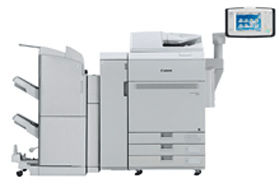
imagePRESS C650
The imagePRESS C650 delivers stunning image quality at up to 65 letter-sized impressions per minute, enabling demanding office environments, CRD’s, and light production shops to print a variety of applications including newsletters, presentations, marketing materials, business cards, brochures, envelopes, and even banners up to 30 inches in length.
Whether you’re printing jobs for external clients or pushing through important print jobs for internal stakeholders, it’s crucial to keep your customers satisfied and that’s what the imagePRESS digital color presses are all about. From enterprises responsible for office type printing and the printing of previously outsourced high quality marketing collateral to franchises where paper handling, space, and budget are key concerns, the imagePRESS C650 offers production grade features at a budget friendly investment.
The imagePRESS C650 delivers stunning image quality at up to 65 letter-sized impressions per minute, enabling demanding office environments, CRD’s, and light production shops to print a variety of applications including newsletters, presentations, marketing materials, business cards, brochures, envelopes, and even banners up to 30 inches in length. To help ensure you get the most from this engine, the imagePRESS C650 offers:
The imagePRESS C650 delivers stunning image quality at up to 65 letter-sized impressions per minute, enabling demanding office environments, CRD’s, and light production shops to print a variety of applications including newsletters, presentations, marketing materials, business cards, brochures, envelopes, and even banners up to 30 inches in length. To help ensure you get the most from this engine, the imagePRESS C650 offers:
- Production Grade Reliability & Uptime
Designed for demanding production environments, the imagePRESS C650 can bring production grade reliability to high-end office and light production environments helping to ensure jobs are completed under tight deadlines. - Ease of Use & Intuitive GUI
The built-in imagePRESS Printer Kit includes the capability to integrate with optional enterprise solutions such as uniFLOW and support for Canon’s MEAP platform, which helps simplify routine scanning, copying, and multifunctional workflow processes. - High Productivity & Broad Media Support
High image quality on many paper stocks including plain, heavy, coated, specialty, as well as high productivity on complex and mixed media jobs help keep more print and scan jobs in-house, while producing presentation handouts, memos, flyers, forms, brochures, mailings, envelopes, and business cards.
Outstanding Performance
- High Quality, Even at High Speeds: Advanced Twin Belt Fusing unit enables a maximum speed of up to 65 letter-sized images per minute
- Mixed Media: High-quality performance on mixed media jobs up to 110 lb.
- Production Built: Can easily adapt to high-end office and CRD environments, thanks to its support of plain, coated, and heavy stocks; simple, on-the-fly replacement of toner; long-lasting parts; and an intuitive interface
Save Time and Money
- Hard Working and Reliable: Designed to help print providers grow their business by delivering high uptime
- Keep Work In-House: The productivity, quality, and media handling can help save enterprises time and money that would otherwise be spent on outsourcing print work
- Integration With Output Management Solutions: Integrates with workflow solution options such as uniFLOW that provides the ability to carry out detailed tracking, reporting, and cost analysis
Quality Delivered
- Automatic Color Correction: Helps ensure high color consistency and productivity with little or no manual labor when producing corporate colors and repeat jobs
- Maintaining High Detail: Capable of generating a smaller laser dot than conventional infrared technology, the imagePRESS C650 can create high-definition images, leading to high-quality output
- Eye-Catching Results: Delivered time after time with advanced technologies that help enable predictable color and high precision when printing images
* Requires Envelope Attachment Kit.
** With optional Stack Bypass-C2 and Long Sheet Tray. Paper sizes longer than 19.2" can be fed one sheet at a time.
** With optional Stack Bypass-C2 and Long Sheet Tray. Paper sizes longer than 19.2" can be fed one sheet at a time.
* Requires Envelope Attachment Kit.
** With optional Stack Bypass-C2 and Long Sheet Tray. Paper sizes longer than 19.2" can be fed one sheet at a time.
** With optional Stack Bypass-C2 and Long Sheet Tray. Paper sizes longer than 19.2" can be fed one sheet at a time.

Filter & Sort
Filtrar y ordenar
Filtrar e ordenar
Download Type
Tipo de descarga
Tipo de download
2. Select the Version
- Windows Server 2025
- macOS 15
- macOS 14
- macOS 13
- Windows 11
- macOS 12
- Windows Server 2022
- macOS 11
- Linux MIPS
- Linux ARM
- macOS 11.0
- macOS 10.15
- macOS v10.13
- macOS v10.14
- Windows Server 2019 (x64)
- macOS v10.14
- macOS v10.13
- Windows Server 2016 (x64)
- macOS v10.12
- Linux 64bit
- Linux 32bit
- OS X v10.11
- Windows 10
- Windows 10 (x64)
- OS X v10.10
- Windows Server 2012 R2 (x64)
- OS X v10.9
- Windows 8.1 (x64)
- Windows 8.1
- Windows Server 2012 (x64)
- Windows 8
- Windows 8 (x64)
- Windows 7
- Windows 7 (x64)
- Windows Vista
- Windows Vista (x64)
- Windows XP
- Windows XP (x64)
- Windows Server 2008
- Windows Server 2008 (x64)
- Windows Server 2008 R2 (x64)
- Windows Server 2003
- Windows Server 2003 (x64)
- Windows Server 2003 R2
- Windows Server 2003 R2 (x64)
- Windows 2000
- Windows NT
- Windows 3.1
- Windows Me
- Windows 98
- Windows 95
- Mac OS X v10.8
- Mac OS X v10.7
- Mac OS X v10.6
- Mac OS X v10.5
- Mac OS X v10.4
- Mac OS X v10.3
- Mac OS X v10.2
- Mac OS X v10.1
- Mac OS X
- Mac OS 9
- Mac OS 8
- Linux (x64)
- Linux (x32)
- Linux
- Not Applicable
3. Software and Drivers Results
Results will appear after selecting an Operating System and Version above.