Rollers / Cassettes
Explore null | Canon Latin America
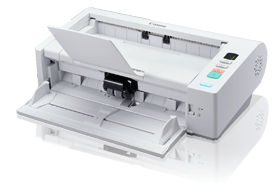
imageFORMULA DR-M140
The Canon imageFORMULA DR-M140 document scanner is a compact and versatile solution to help reduce paperwork and improve workflows. With an out-of-the-box design, reliable handling, and advanced image quality functions, the DR-M140 is a performance-driven device that provides the basis for an intelligent document capture system.
The Canon imageFORMULA DR-M140 document scanner is a compact and versatile solution to help reduce paperwork and improve workflows. With an out-of-the-box design, reliable handling, and advanced image quality functions, the DR-M140 is a performance-driven device that provides the basis for an intelligent document capture system.
Each day legal, medical, government, and financial employees are challenged with overwhelming amounts of paperwork. From invoices to letters, contracts to EKG strips, those in "paper-based businesses" require a document capture system that starts with the DR-M140 scanner, to help ensure efficient information management.

Reliable and Versatile:
 Reliable pickup feeding Reliable pickup feeding |
 "U-turn" path feeding "U-turn" path feeding |
- Typical document scanning |
 Straight path feeding Straight path feeding |
- Thick documents |
 Long Document Mode Long Document Mode |
- Documents up to 118" |
 Folio Mode Folio Mode |
 Ultrasonic Doublefeed Detection Ultrasonic Doublefeed Detection |
 Double - Feed Release (DFR) button Double - Feed Release (DFR) button |
Compact Body Design:
 3.7" (H) x 12.3" (W) x 7.1" (D) (with trays closed) 3.7" (H) x 12.3" (W) x 7.1" (D) (with trays closed) |
 5.7 lb. 5.7 lb. |
 Space-saving Space-saving |
- No lengthy feed tray needed |
 Front-feeding Front-feeding |
 Control Panel Control Panel |
- 9 selectable scan tasks |
Productive and Capable:
 Automatic Document Feeder Automatic Document Feeder |
- 50 sheets |
 Suggested Daily Volume Suggested Daily Volume |
- 6,000 scans |
 Maximum scanning speed (in all modes) Maximum scanning speed (in all modes) |
- 40ppm |
 MultiStream MultiStream |
- For saving and sending files in different formats |
High Image Quality:
 Image processing features increase precision Image processing features increase precision |
|
Comprehensive Software:
 Canon CaptureOnTouch (new User Interface) Canon CaptureOnTouch (new User Interface) |
- Scan to Microsoft SharePoint |
 Canon CapturePerfect Canon CapturePerfect |
- Auto Color Detection |
 Kofax VRS Kofax VRS |
 Nuance eCopy PDF Pro Office Nuance eCopy PDF Pro Office |
Environment In Mind:
 Meets ENERGY STAR guidelines Meets ENERGY STAR guidelines |
 EU RoHS Compliant EU RoHS Compliant |
 EU WEEE Compliant EU WEEE Compliant |
| Model Name | ImageFORMULA DR-M140 Document Scanner |
| Type | Office Scanner |
| Document Feeding | Automatic Or ManualDocument Size: U-Turn Path: Width: 2.0" - 8.5" Length: 2.9" - 14" Straight Path: Width: 2.0" - 8.5" Length: 2.1" - 14"Long Document Mode: Up To 118"Document Weight: U-Turn Path: 7-34 Lb. Bond Straight Path: 7-68 Lb. Bond |
| Feeder Capacity | 50 Sheets |
| Grayscale | 8-Bit |
| Color | 24-Bit |
| Scanning Element | One-Line Contact Image Sensor (CMOS) |
| Light Source | RGB LED |
| Operating Modes | Grayscale, B&W, Color, Error Diffusion, ATE (Multiple Modes) |
| Drop Out Color | Red, Green, Blue |
| Optical Resolution | 600 Dpi |
| Output Resolution | 150 / 200 / 300 / 400 / 600 Dpi |
| Interface | Hi-Speed USB 2.0 |
| Scanner Drivers | ISIS/TWAIN |
| Dimensions | 3.7" X 12.3" X 7.1" (With Trays Closed) |
| Weight | 5.7 Lb. |
| Power Consumption | 25W Max (Energy Saving Mode: 1.9W)Suggested Daily Volume:** 6,000 Scans |
| Other Features | Auto Color Detection, Auto Page Size Detection, Auto Resolution Setting, Background Smoothing, Character Emphasis, Deskew, Double-Feed Release, Edge Emphasis, Folio Mode, Long Document Mode, MultiStream, Pre-Scan, Prevent Bleed-Through/Remove Background, Shadow Cropping, Skip Blank Page, Text Orientation Recognition, Ultrasonic Double-Feed Detection, User PreferencesBundled Software: ISIS/TWAIN Drivers, Canon CaptureOnTOuch, Canon CapturePerfect, Nuance ECopy PDF Pro Office, Kofax VRS |
| Options | Flatbed Scanner Unit 101, Exchange Roller Kit, Barcode Module* Examples Based On Typical Settings, Rated In Pages/Images Per Minute With Letter-Sized Documents, Portrait-Feeding Direction, Up To 200 Dpi. ** Calculations Based On Scanning Speed And Typical Daily Time Of Usage. |
Scanning Speeds
| Black And White | (Simplex / Duplex:)* Up To 40 Ppm / Up To 80 Ipm |
| Grayscale | (Simplex / Duplex:)* Up To 40 Ppm / Up To 80 Ipm |
| Color 24 Bit | (Simplex / Duplex:)* Up To 40 Ppm / Up To 80 Ipm |

Exchange Roller Kit
Easy-to-replace kit typically consists of pickup, separation, and feed rollers that help ensure reliable document feeding and promote easy maintenance and upkeep of the scanning device.
Other Scanner Accessories

Flatbed Scanner Unit 102

NA10 Network Adapter
Create ethernet network connectivity with the NA10 and a compatible imageFORMULA document scanner.
For more information, click here.
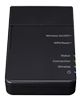
WA10 Network Adapter
Create ethernet and Wi-Fi network connectivity with the WA10 and a compatible imageFORMULA document scanner.
For more information, click here.
Software
Barcode Module

Filter & Sort
Filtrar y ordenar
Filtrar e ordenar
Download Type
Tipo de descarga
Tipo de download
2. Select the Version
- Windows Server 2025
- macOS 15
- macOS 14
- macOS 13
- Windows 11
- macOS 12
- Windows Server 2022
- macOS 11
- Linux MIPS
- Linux ARM
- macOS 11.0
- macOS 10.15
- macOS v10.13
- macOS v10.14
- Windows Server 2019 (x64)
- macOS v10.14
- macOS v10.13
- Windows Server 2016 (x64)
- macOS v10.12
- Linux 64bit
- Linux 32bit
- OS X v10.11
- Windows 10
- Windows 10 (x64)
- OS X v10.10
- Windows Server 2012 R2 (x64)
- OS X v10.9
- Windows 8.1 (x64)
- Windows 8.1
- Windows Server 2012 (x64)
- Windows 8
- Windows 8 (x64)
- Windows 7
- Windows 7 (x64)
- Windows Vista
- Windows Vista (x64)
- Windows XP
- Windows XP (x64)
- Windows Server 2008
- Windows Server 2008 (x64)
- Windows Server 2008 R2 (x64)
- Windows Server 2003
- Windows Server 2003 (x64)
- Windows Server 2003 R2
- Windows Server 2003 R2 (x64)
- Windows 2000
- Windows NT
- Windows 3.1
- Windows Me
- Windows 98
- Windows 95
- Mac OS X v10.8
- Mac OS X v10.7
- Mac OS X v10.6
- Mac OS X v10.5
- Mac OS X v10.4
- Mac OS X v10.3
- Mac OS X v10.2
- Mac OS X v10.1
- Mac OS X
- Mac OS 9
- Mac OS 8
- Linux (x64)
- Linux (x32)
- Linux
- Not Applicable
3. Software and Drivers Results
Results will appear after selecting an Operating System and Version above.