Explore null | Canon Latin America
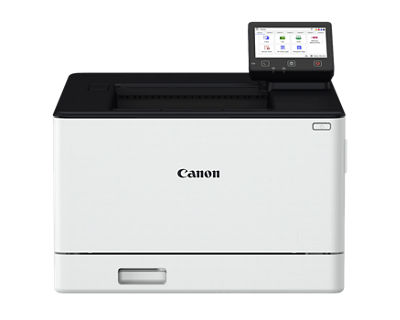
imageFORCE C1333 Series
- Color Multifunction Desktop Printer (C1333F) / Color Single-function Desktop Printer (C1333P)
- Prints up to 35 ppm (BW/Color, Letter)
- Scans up to 100/80 ipm (300 dpi, Color/BW, Duplex)1
- Up to 850-sheet maximum paper capacity
- Supports Paper Sizes up to 8-1/2” x 14” (Legal Size)
- Supports uniFLOW Online
Overview
Canon’s imageFORCE C1333 Series is where speed, security features, and vibrant color printing meet an efficient and compact design. Designed for organizations demanding dependable performance and effortless fleet integration, this multifunction or single-function solution can help transform your workflow. Built on Canon’s cutting-edge imageFORCE platform, the C1333 Series delivers advanced security features and seamless cloud connectivity capabilities—all in a space-saving package designed to help elevate your business.

Features
Print Better
Produce sharp, high quality color prints with the speed, precision, and reliability you expect from Canon devices—engineered to help you handle your everyday workload with ease.

Reliable Performance, Every Day
Powered by Canon’s trusted technology, the imageFORCE C1333 Series is designed to deliver vibrant, consistent color quality prints.

Vivid Image Quality
Advanced imaging technology and toner formulation help provide sharp, high-quality color with every print.

Maximized Uptime
Designed for continuous productivity, featuring real-time status alerts, effortless supply replenishment, and intuitive maintenance videos for common tasks like consumables replacement.
High-Speed Precision Delivers Clear Output
To help users achieve up to 1200 dpi (equivalent) image quality at high engine speeds, the system increases laser exposure frequency—to help you produce prints that are sharp, detailed, and consistent.

Help Expand Print Efficiency with Workflow Solutions
Manage tasks, track costs, and print and scan all on one platform with the optional uniFLOW Online solutions, a powerful cloud-based solution that helps to reduce IT workload and adds flexibility to your print environment.
Do More
Help elevate daily efficiency with seamless workflows, simple and intuitive print technology, integrated solutions, and flexible media handling.

Simple User Interface
The imageFORCE C1333 Series features a consistent and intuitive interface that makes operation easy—whether you’re printing, scanning,1 or managing settings.
- 5-inch responsive touchscreen with a clean, modern layout.
- Icon-based navigation for quick access to key functions.
- Customizable settings for language, accessibility, and display preferences.
Cloud Ready Solutions
Canon’s imageFORCE platform supports seamless integration with a variety of cloud storage services and third-party software. The imageFORCE C1333 Series is compatible with Canon’s optional uniFLOW Online and other solutions that are designed to help streamline document workflows, security features, and simplify fleet management. With support for scan-to-cloud,1 mobile printing, and remote device monitoring, it’s built for today’s connected work environments.

Hassle-Free Setup and Maintenance
Canon U.S.A.’s range of Smart Services are available as an option and are designed to help support you at every stage of the device management life cycle. Benefits include:
- Setting up and deploying your devices quickly.
- Enabling proactive service and fast issue resolution.
- Access upgrades and replace parts with ease.

Gain Control of Your Fleet
Centralize the management of your print fleet and help maximize uptime with the support of imageWARE Enterprise Management Console. A standard feature on Canon devices, this console helps to monitor device status and consumables, apply security settings, update firmware, capture meter readings, and much more—virtually anytime and anywhere.

Printing that Performs. Scanning that Delivers.
Performance doesn’t need to stop at print. The imageFORCE C1333F is equipped with a high-speed, single-pass duplex scanner that captures up to 100/80 images per minute (300 dpi, black-and-white and color). Whether you’re scanning reports, ID cards, or everyday documents, the device is designed to deliver clean, high-resolution results that you can integrate seamlessly into your digital workflows. With support for searchable file formats, cloud destinations, and compact media like business cards, the C1333F is built to simplify document capture and help streamline your day-to-day tasks.
Built with a Sustainability Features
From thoughtful design to efficient energy use, Canon’s commitment to the environment can be seen with the imageFORCE series of printers. Features include:
- A combination of highly efficient fusing technologies and low-melting-point toner helps to minimize power requirements and achieve low energy consumption.
- Promotes smarter work habits with customizable settings that help reduce paper use.
Stay Ahead
Make the move forward with cutting-edge print technology that is built to help your organization be more productive, and more prepared for the unexpected.


- Available for the imageFORCE C1333F only.
- Canon PRINT is a free app available on the App Store® and Google Play™ Store. For more information, including compatibility, please visit https://www.usa.canon.com/mobile-app. Please see the respective websites for Apple AirPrint and Mopria Print Service for compatibility and additional information.
- Subscription to a third-party cloud service required. Subject to third-party cloud service provider’s Terms and Conditions.
- This feature is off by default and must be turned on by the administrator. Warm up times are affected once turned on.
- Please reference user manuals for details on settings available to export.
- Third-party SIEM system required. Subject to third-party SIEM system terms and conditions. Canon cannot ensure compatibility with all third-party SIEM systems.
- Attachment kit required.
- Ask Canon authorized representative for reader compatibility information.
- Limited warranty program is subject to certain conditions and restrictions. See warranty card for details.
- Print speed is based on internal testing. Print speed may vary, depending on the number of copies selected as well as the settings for size, type, and orientation of paper.
- Time from device power on until copy ready (not print reservation).
- Including regular toner.
| Technology/Type |
|
| Core Functions |
|
| Print Speed (Color) | Up to 35 ppm (Letter)10 |
| Copy Speed (Letter, Color/BW) | Up to 35 ppm (Letter) |
| First-Print-Out Time (Letter, Color/BW) | Approx. 7 Seconds |
| Scan Speed (Letter) | Copy (300 x 600 dpi):
|
| Memory | 1.0 GB RAM |
| Warm-up Time |
|
| Paper Capacity (Letter, 20 lb. Bond) |
|
| Supported Media Types |
|
| Supported Media Sizes |
|
| Supported Media Weights |
|
| Dimensions (W x D x H) |
|
| Weight |
|
| Interface Connections |
|
| Paper Sources (Letter, 20 lb. Bond) |
|
| Output Capacity (Letter, 20 lb. Bond) | Standard: 75 Sheets |
| Installation Space (W x D) |
|
- Available for the imageFORCE C1333F only.
- Canon PRINT is a free app available on the App Store® and Google Play™ Store. For more information, including compatibility, please visit https://www.usa.canon.com/mobile-app. Please see the respective websites for Apple AirPrint and Mopria Print Service for compatibility and additional information.
- Subscription to a third-party cloud service required. Subject to third-party cloud service provider’s Terms and Conditions.
- This feature is off by default and must be turned on by the administrator. Warm up times are affected once turned on.
- Please reference user manuals for details on settings available to export.
- Third-party SIEM system required. Subject to third-party SIEM system terms and conditions. Canon cannot ensure compatibility with all third-party SIEM systems.
- Attachment kit required.
- Ask Canon authorized representative for reader compatibility information.
- Limited warranty program is subject to certain conditions and restrictions. See warranty card for details.
- Print speed is based on internal testing. Print speed may vary, depending on the number of copies selected as well as the settings for size, type, and orientation of paper.
- Time from device power on until copy ready (not print reservation).
- Including regular toner.

- Windows Server 2025
- macOS 15
- macOS 14
- macOS 13
- Windows 11
- macOS 12
- Windows Server 2022
- macOS 11
- Linux MIPS
- Linux ARM
- macOS 11.0
- macOS 10.15
- macOS v10.13
- macOS v10.14
- Windows Server 2019 (x64)
- macOS v10.14
- macOS v10.13
- Windows Server 2016 (x64)
- macOS v10.12
- Linux 64bit
- Linux 32bit
- OS X v10.11
- Windows 10
- Windows 10 (x64)
- OS X v10.10
- Windows Server 2012 R2 (x64)
- OS X v10.9
- Windows 8.1 (x64)
- Windows 8.1
- Windows Server 2012 (x64)
- Windows 8
- Windows 8 (x64)
- Windows 7
- Windows 7 (x64)
- Windows Vista
- Windows Vista (x64)
- Windows XP
- Windows XP (x64)
- Windows Server 2008
- Windows Server 2008 (x64)
- Windows Server 2008 R2 (x64)
- Windows Server 2003
- Windows Server 2003 (x64)
- Windows Server 2003 R2
- Windows Server 2003 R2 (x64)
- Windows 2000
- Windows NT
- Windows 3.1
- Windows Me
- Windows 98
- Windows 95
- Mac OS X v10.8
- Mac OS X v10.7
- Mac OS X v10.6
- Mac OS X v10.5
- Mac OS X v10.4
- Mac OS X v10.3
- Mac OS X v10.2
- Mac OS X v10.1
- Mac OS X
- Mac OS 9
- Mac OS 8
- Linux (x64)
- Linux (x32)
- Linux
- Not Applicable