Explore null | Canon Latin America
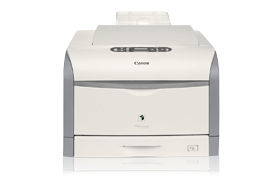
Color imageRUNNER LBP5975
The Color imageRUNNER LBP5975 model operates at up to 31 pages per minute (letter) in monochrome and up to 30 ppm (letter) in brilliant color. This model also features standard in-line compact staple finishing.
Powerful Processing Engine:
Superb Image Quality:
*Printing at 1200-dpi on Color imageRUNNER LBP5975/LBP5970 models may result in reduced engine speed.
Compact Finishing Capabilities:
**When the staple feature is used, print speed may be reduced. Refer to product specifications for available corner staple positions.
Consistent imageRUNNER Print Driver Architecture:
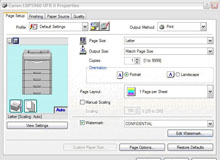
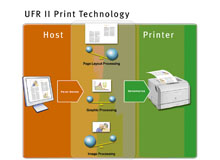
Powerful UFR II Print Controller:
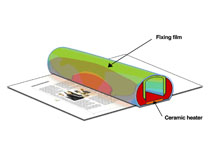
RAPID Fusing System:
Next Generation Toners:
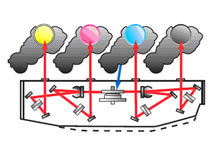
4-In-1 Laser Scanner:
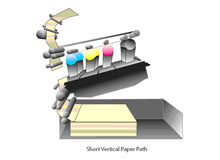
Short Vertical Paper Path:
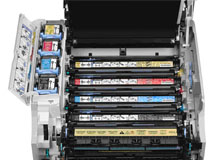
Front-Load Access:
Advanced Paper Handling:
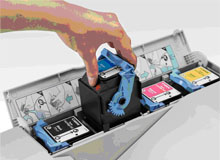
Simplified Maintenance:
| Model Name | Color Imagerunner Lbp5975 |
| Printing Process | Type: Desktop Color Laser Printer Copying Method: Electrophoto Method (Color Rapid Fusing System) Developing System: Dry Dual Component |
| Print Resolution | Super Fine Mode: 1200 Dpi X 1200 Dpi Fine Mode: 2400 Dpi Equivalent X 600 Dpi Pcl5c/6: 2400 Dpi Equivalent X 600 Dpi Ps3 (Optional): 1200 Dpi X 1200 Dpi (Text And Line Only) 2400 Dpi Equivalent X 600 Dpi Engine Resolution: 1200 Dpi X 1200 Dpi |
| Letter | 31/30 Ppm |
| First Print Time | Black And White: 8.9 Sec. Color: 10.4 Sec. |
| Processor | R4000 Series (400 Mhz***), Mips64 Series (533 Mhz***) |
| Memory | Standard: 256mb Ram Maximum: 768mb Ram* Hard Disk Drive: Optional 30gb |
| Page Description Language | Ufr Ii/Pcl5c/6 Optional Pdl Support: Postscript® 3™; Emulation (Ps Rom 98b/98c)†††† |
| Printer Driver | Ufr Ii: Windows® (Windows 2000/Xp/Vista®/Server 2003), Citrix Metaframe/Macintosh® (Os 10.3.3 Or Later)/Novell Netware® V3.20/4.1/4.11/4.20/5.0/5.1/6.0/6.5 (Ipx/Spx) Pcl5c/6: Windows (Windows 2000/Xp/Vista/Server 2003), Citrix Metaframe Ps3 Emulation: Windows (Windows98/Me/2000/Xp/Server 2003), Citrix Metaframe/Macintosh (Os 10.3.3 Or Later) Halftone: 256 Gradations (Continuous-Tone) |
| Interface | Network Interface Connections: 10/100base-Tx (Rj-45) Wireless Lan (Ieee 802.11)** Other Interface: Usb 2.0 Hi-Speed/Usb Full-Speed (Usb 1.1 Equivalent) User Interface: Lcd 16 Characters X 1 Line, 11 Led Indicators, 9 Operation Keys |
| Paper Size | Ledger, Legal, Letter, Executive |
| Paper Weight | 17 Lb. Bond To 28 Lb. Bond |
| Paper Size | Ledger, Legal, Statement, Letter, Executive, Custom Sizes (Width: 3-7/8" To 5-3/4" Length: 5-1/2" To 18"), Long Size Paper (Width: 8-3/8" To 11-3/4" Length: 18" To 47-1/4") And Envelopes |
| Paper Weight | 17 Lb. Bond To 80 Lb. Cover Paper Sources |
| Standard Output | Output Capacity: Approximately 250 Sheets (20 Lb. Bond) Paper Output: Face-Down Duplexing: Standard Automatic Trayless Duplexing (Executive To 11" X 17") Finishing Capability: (Available On Lbp5975 Only) |
| Dimensions | 17-1/4" X 21" X 25 " Installation Space (W X D): 21 1/2" X 37 3/5" (When Multi-Purpose Tray Is Extended) |
| Weight | Approximately 115.7 Lb. |
| Power Source | 120v - 127v 60hz |
| Standard | Operating: Approximately 653w (Average) Standby: Approximately 34w (Average) |
| Power Saver Mode | Approximately 14w (Average) Deep Sleep Mode: Approximately 1w (Average) Plug: Nema 5-15p |
| Warm Up Time | 0 Seconds From Standby, 30 Seconds Or Less From Power On |
| Estimated Toner Yield For B And W | 10,000 Images @ 5% Coverage†† |
| Estimated Toner Yield For Color | 6,000 Images @ 5% Coverage†† Optional Accessories Other Optional Accessories
* One Memory Slot Available For Additional Memory. |

- Windows Server 2025
- macOS 15
- macOS 14
- macOS 13
- Windows 11
- macOS 12
- Windows Server 2022
- macOS 11
- Linux MIPS
- Linux ARM
- macOS 11.0
- macOS 10.15
- macOS v10.13
- macOS v10.14
- Windows Server 2019 (x64)
- macOS v10.14
- macOS v10.13
- Windows Server 2016 (x64)
- macOS v10.12
- Linux 64bit
- Linux 32bit
- OS X v10.11
- Windows 10
- Windows 10 (x64)
- OS X v10.10
- Windows Server 2012 R2 (x64)
- OS X v10.9
- Windows 8.1 (x64)
- Windows 8.1
- Windows Server 2012 (x64)
- Windows 8
- Windows 8 (x64)
- Windows 7
- Windows 7 (x64)
- Windows Vista
- Windows Vista (x64)
- Windows XP
- Windows XP (x64)
- Windows Server 2008
- Windows Server 2008 (x64)
- Windows Server 2008 R2 (x64)
- Windows Server 2003
- Windows Server 2003 (x64)
- Windows Server 2003 R2
- Windows Server 2003 R2 (x64)
- Windows 2000
- Windows NT
- Windows 3.1
- Windows Me
- Windows 98
- Windows 95
- Mac OS X v10.8
- Mac OS X v10.7
- Mac OS X v10.6
- Mac OS X v10.5
- Mac OS X v10.4
- Mac OS X v10.3
- Mac OS X v10.2
- Mac OS X v10.1
- Mac OS X
- Mac OS 9
- Mac OS 8
- Linux (x64)
- Linux (x32)
- Linux
- Not Applicable