Explore null | Canon Latin America
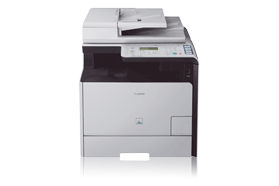
Color imageCLASS MF8380Cdw
The imageCLASS MF8380Cdw delivers fast and accurate printing in approximately 14.3 seconds with Canon's Quick First Print Technology. Multi-page documents are ready in a short amount of time with print speeds of up to 21 color/21 monochrome ppm, simplex and 10 color/10 monochrome, duplex7.
- MF8380Cdw
- Setup Instructions
- Power Cord
- Registration Card
- Starter Cartridges 118
- Manuals
- User Software CD-ROM
Print, Copy, Fax and Scan with the Canon Color imageCLASS MF8380Cdw Wireless Multifunction Printer.
The imageCLASS MF8380Cdw delivers fast and accurate printing in approximately 14.3 seconds with Canon's Quick First Print Technology. Multi-page documents are ready in a short amount of time with print speeds of up to 21 color/21 monochrome ppm, simplex and 10 color/10 monochrome, duplex7.
Designed to simplify office workflow, the MF8380Cdw features WiFi capabilities that allow you to share the best of your device's resources with multiple users6 and One Touch Button support that gives you instant access to key functions. With Auto-Duplex functionality, print, copy and fax two-sided documents from single-sided originals with ease, cutting your paper usage by as much as half. Connect your USB removable media to the USB port located conveniently in the front of the machine to print or scan your letter, statement, or legal-sized documents. The device is outfitted with a front-loading design that provides easy access to the control panel and paper sources. The smart paper handling of the MF8380Cdw includes a 250-sheet cassette, 50-sheet multipurpose tray, and an optional 250-sheet cassette for your convenience4.
The Superior Color Imaging Technology featured in the MF8380Cdw captures fine details with remarkable tone-on-tone clarity, helping images stay true to the original. Canon Pure Black Technology ensures the richest blacks by utilizing only the black toner instead of traditional methods of combining toner colors.
The Color imageCLASS MF8380Cdw is equipped with many unique cost-saving features, such as Department ID Management, which enables you to set limits on who can use the machine and how much they can print, copy or scan. It also provides the option to scan and send your original documents directly to an email address or network folder and uses approximately 2.2 watts of energy during Energy Saving Mode and meets Energy Star guidelines, saving you money on energy costs.
Like many imageCLASS products, the MF8380Cdw is part of the Generation Green program, Canon's initiative to reduce environmental burdens in all stages of a product's life-cycle.








Duplex Versatility: Two sided printing, scanning, copying and faxing
Print and copy at up to 21 ppm in color and black & white
Quick First Print provides first print time of approximately 15 seconds
WiFi Capabilities: Duplex Print, Scan and PC Fax at up to 802.11n speed
Scan in color up to 9600 dpi quality (interpolated) with up to 600 dpi optical resolution
Scan to and print from USB for files on the go
250-sheet cassette plus 50-sheet multipurpose tray; optional 250-sheet cassette
Up to 50-sheet DADF (Duplex Automatic Document Feeder)
33.6 Kbps Super G3 fax
Remote device management through embedded web server
USB 2.0 Hi-Speed for optimal performance
Efficient energy-saving mode; 1.4W (wired), 2.2 (wireless) of energy used
User-friendly 5-line LCD for easy navigation
Password-protected Department ID Management helps to control device usage
Single Cartridge System for cost-efficient supplies replenishment
2. Combined with Toolbox feature.
3. PNG support MAC OS only.
4. Based on 20 lb. paper.
5. Warranty program is subject to certain conditions and restrictions. See the warranty card for details.
6. Wireless performance may vary based on terrain and distance between the printer and wireless network clients.
7. Print speed is based on internal testing. Print speed may vary depending on the number of copies selected, as well as on the setting for size, type and orientation of paper.
| Printing Method | Color Laser |
| Print Speed Text | Default Print Mode: 2-Sided Up To 10 Ppm (2 -Sided, Plain Paper Letter)7 Up To 21 Ppm (1-Sided, Plain Paper Letter)7 First Print Time Approx. 15.3/16.0 Sec (Black/Color) (Letter) |
| Resolution Text | Up To 600 X 600 Dpi 2400 X 600 Dpi Quality |
| Toner Compatibility | Cartridge 118 (Yields: 2,900 CMY/3,400 Black Pages*) Maximum Monthly Duty Cycle: 40,000 Pages *Yield Is Based On ISO/IEC Standard |
| Print Features | Printer Language Canon UFR II LT (Host-Based) Print Modes Poster, Booklet, Watermark, Toner Saver, Page Composer Print Memory 256MB (Shared) |
| Paper Weights | 16 To 43 Lbs. Bond (Cassette) 16 To 58 Lbs. Bond (Multipurpose Tray) |
| Output Tray Capacity | 125 Sheets (Facedown) |
| Mono Copy Resolution | Up To 600 X 600 Dpi |
| Mono Copy Speed Up To | Up To 21 Cpm Color/Monochrome (Letter) Duplex: Up To 10 Cpm Color/Monochrome (Letter) |
| Type | Color Laser |
| Zoom | 25-400% In 1% Increments |
| Halftones | 256 Levels |
| First Copy Time | Approx. 15.3/16.0 Sec (Black/Color) (Letter) |
| Reductions Enlargement | 25%, 50%, 64%, 78% >129%, 200%, 400% |
| Document Feeder | 50-Sheet4 |
| Copy Size | Platen: Up To Letter ADF: 5.5" X 5" To Legal |
| Copy Feature | Frame Erase, Memory Sort, 2 On 1, 4 On 1, ID Card Copy Duplex Copy / Bind Type: 1 To 2 (Up To 10 Ppm Color/Monochrome Letter) / Book, Calendar |
| Scanner Type | Color Contact Image Sensor (CIS) |
| Max Resolution Text | Up To 600 X 600 Dpi (Optical) Up To 9600 X 9600 Dpi (Interpolated)2 |
| Scanner Features | Rotate, Push Scan, Pull Scan, Duplex Scan, Scan To USB: USB Host 1.1 (PDF, JPEG, TIFF), Scan To Email (PDF) Scan To SMB (PDF, JPEG, TIFF) |
| Color Depth | 24-Bit |
| Max Document Size | Platen: Up To Letter ADF: 5.5" X 5" To Legal |
| File Format | Hi-Compression PDF, Searchable PDF, PDF, JPEG, TIFF, BMP, PNG3 |
| Modem Speed | Up To 33.6 Kbps (Super G3) |
| Transmission Speed Approx | JBIG (2.6 Seconds) |
| Fax Resolution | Up To 406 X 391 Dpi (Ultra Fine) |
| Memory Capacity | Up To 512 Pages1 |
| Speed Dialing | 19 Favorite Dials 181 Coded Dials |
| Group Dialing | Group Dialing: 199 Destinations |
| Receive Options | Fax Only, Manual, Answering, Fax/Tel Auto Switch |
| Fax Features | Remote RX, Dual Access, Distinctive Ring Pattern Detection, Error Correction Mode, Auto Redial, Fax Activity Reports |
| Other Features Networking | PC Fax (Sending Only) Fax Forwarding: Fax/I-Fax To Fax, Email, SMB Memory Backup (5 Minutes) |
| Os Compatibility | Windows® 8, Windows® 7, Windows Server® 2008 (R1/R2), Windows Vista®, Windows Server 2003, Windows XP/2000, Mac® OS X 10.4.9 & Up |
| Standard Interface | USB Device 2.0 Hi-Speed 10/100 Base-T Ethernet (Network) IEEE 802.11 B/G/N Wireless |
| Software Included | Canon Drivers, MF Toolbox, Document Management & OCR Software |
| Power Source | 120V-127V, 60Hz 220V-240V, 50/60Hz |
| Power Consumption Approx | Max: 1200W Energy Saver: 1.4 (Wired), 2.2 (Wireless) Standby: 23W |
| Dimension W X D X H | 17.0" (W) X 19.2" (D) X 18.9" (H) |
| Weight | Approx. 68.4 Lbs. |
| Operating Temperature | 50F - 86F |
| Operating Humidity | 20%-80% RH (No Condensation) |
2. Combined with Toolbox feature.
3. PNG support MAC OS only.
4. Based on 20 lb. paper.
5. Warranty program is subject to certain conditions and restrictions. See the warranty card for details.
6. Wireless performance may vary based on terrain and distance between the printer and wireless network clients.
7. Print speed is based on internal testing. Print speed may vary depending on the number of copies selected, as well as on the setting for size, type and orientation of paper.

- Windows Server 2025
- macOS 15
- macOS 14
- macOS 13
- Windows 11
- macOS 12
- Windows Server 2022
- macOS 11
- Linux MIPS
- Linux ARM
- macOS 11.0
- macOS 10.15
- macOS v10.13
- macOS v10.14
- Windows Server 2019 (x64)
- macOS v10.14
- macOS v10.13
- Windows Server 2016 (x64)
- macOS v10.12
- Linux 64bit
- Linux 32bit
- OS X v10.11
- Windows 10
- Windows 10 (x64)
- OS X v10.10
- Windows Server 2012 R2 (x64)
- OS X v10.9
- Windows 8.1 (x64)
- Windows 8.1
- Windows Server 2012 (x64)
- Windows 8
- Windows 8 (x64)
- Windows 7
- Windows 7 (x64)
- Windows Vista
- Windows Vista (x64)
- Windows XP
- Windows XP (x64)
- Windows Server 2008
- Windows Server 2008 (x64)
- Windows Server 2008 R2 (x64)
- Windows Server 2003
- Windows Server 2003 (x64)
- Windows Server 2003 R2
- Windows Server 2003 R2 (x64)
- Windows 2000
- Windows NT
- Windows 3.1
- Windows Me
- Windows 98
- Windows 95
- Mac OS X v10.8
- Mac OS X v10.7
- Mac OS X v10.6
- Mac OS X v10.5
- Mac OS X v10.4
- Mac OS X v10.3
- Mac OS X v10.2
- Mac OS X v10.1
- Mac OS X
- Mac OS 9
- Mac OS 8
- Linux (x64)
- Linux (x32)
- Linux
- Not Applicable